
Registration Instructions
The course planning and registration process at Holy Family University can be broken down into three main steps:
- Adding a course to your timeline
- Planning your schedule
- Registering for classes
Step 1: Add a Course to Your Timeline
(Skip this step if it has already been done by your advisor)
- To start, log in to Self Service. The landing page will prompt you to accept all agreements, confirm your emergency contact information, and verify your personal information. Be sure to check for any notifications, such as a financial hold.
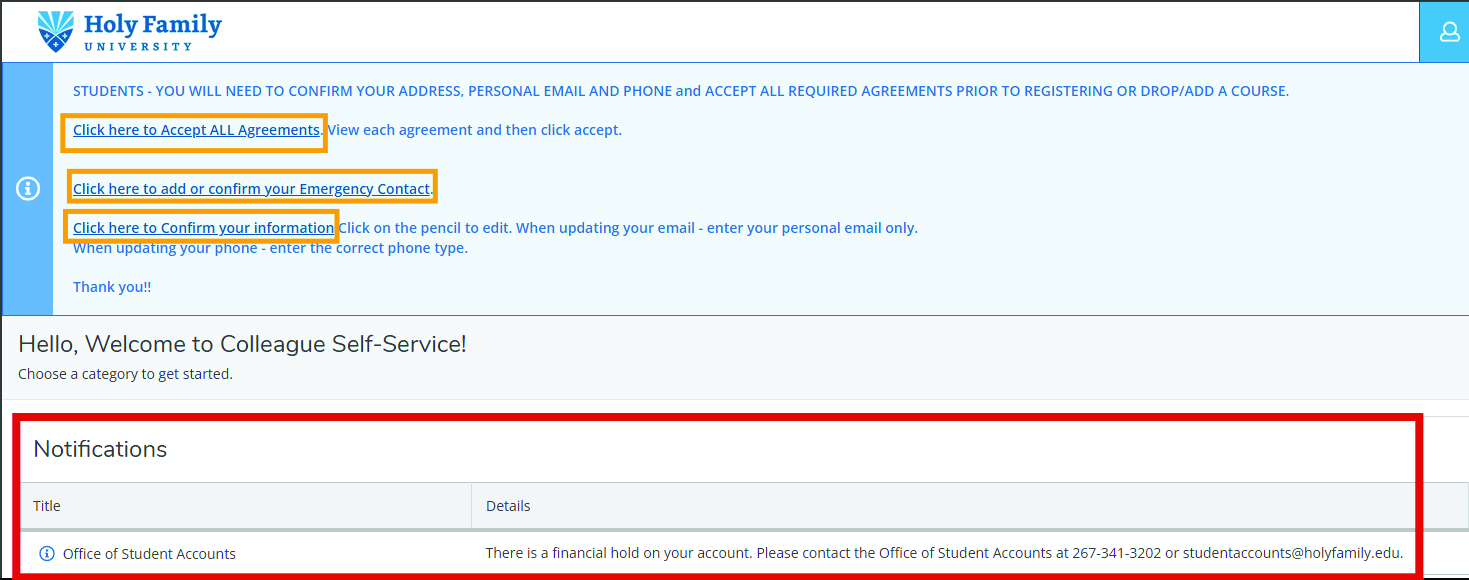
- Once you're done, go to the Student Planning tile (where you can search for courses, plan your terms, and schedule & register your course sections).

- To view the courses required for your degree, select Go to My Progress.
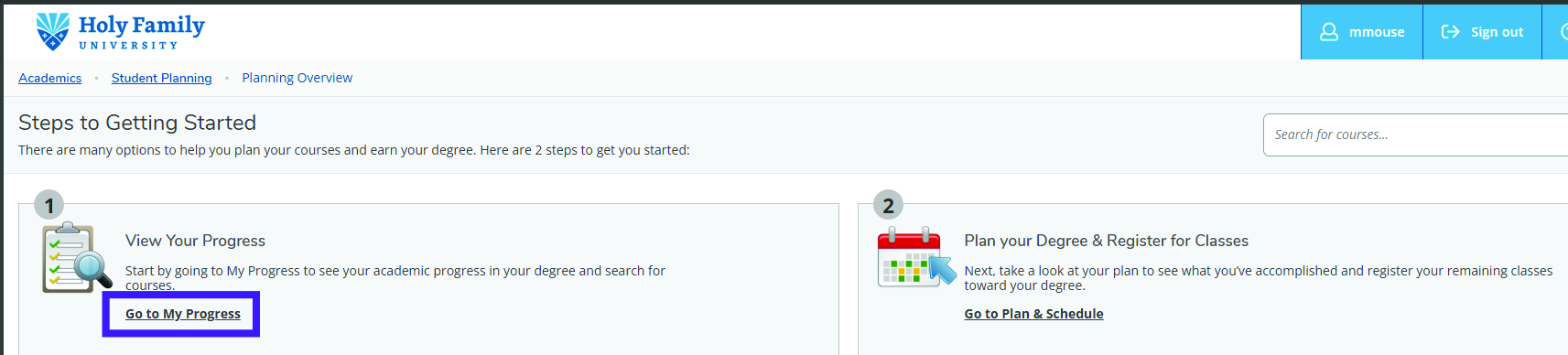
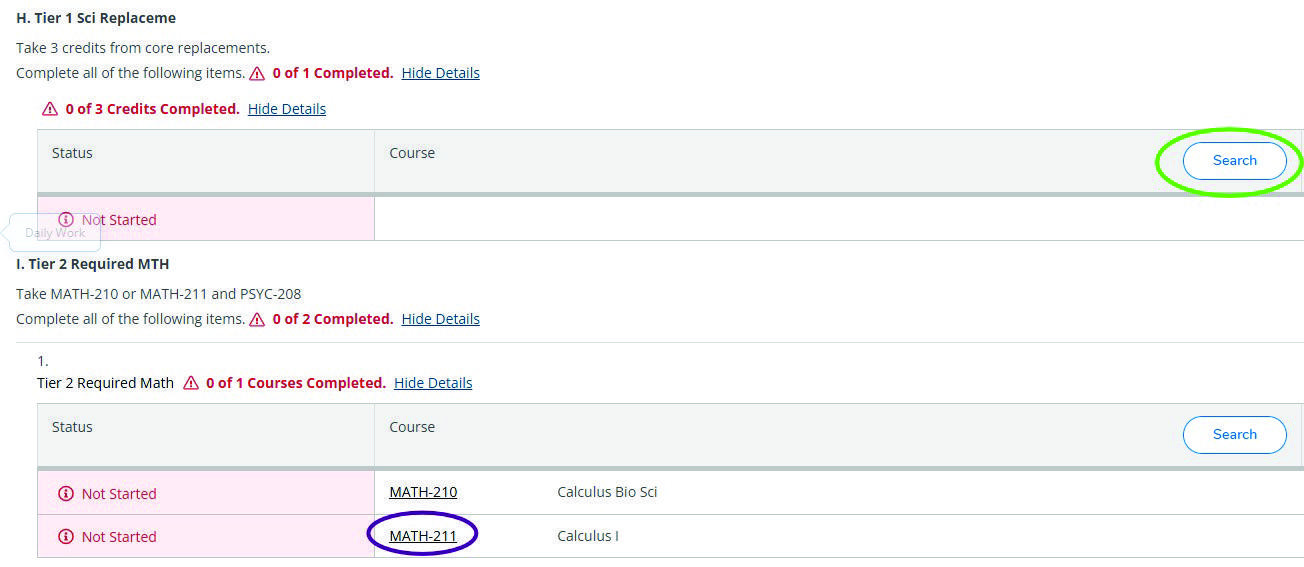
- From there, you can either click the Search button to find eligible courses or click on a specific course to view its catalog details.
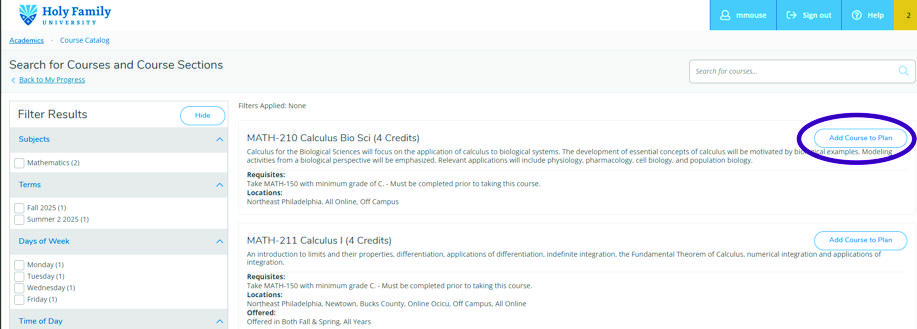
- When you find a course you want to take, click Add Course to Plan.
- A pop-up will appear, allowing you to select the term in which you want to take the course. After you select a term, click Add Course to Plan.
Step 2: Plan Your Schedule
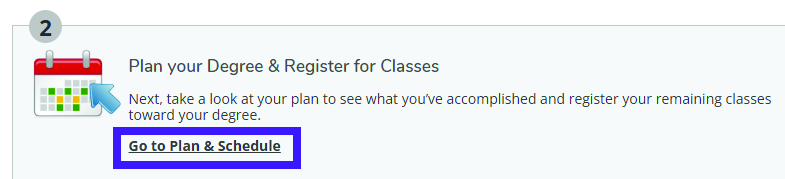
- Return to the Student Planning page and click on Plan & Schedule.
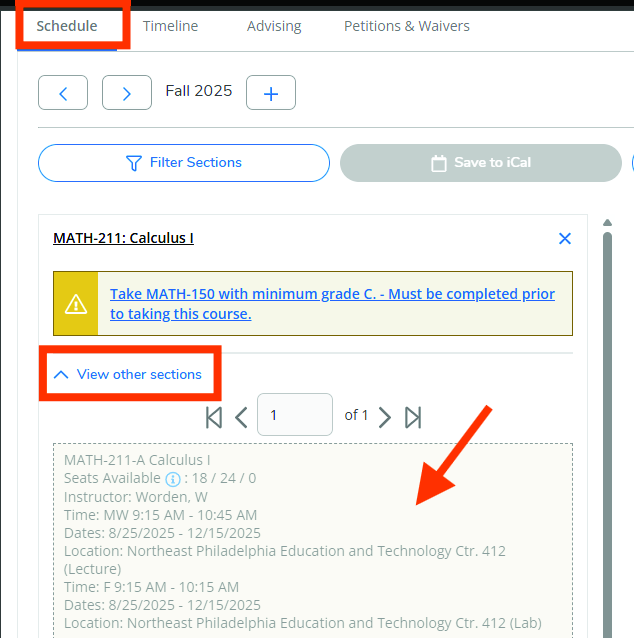
- Then, click on the Schedule tab and use the View other Sections dropdown menu to scroll through the options and find an open section that fits your schedule.
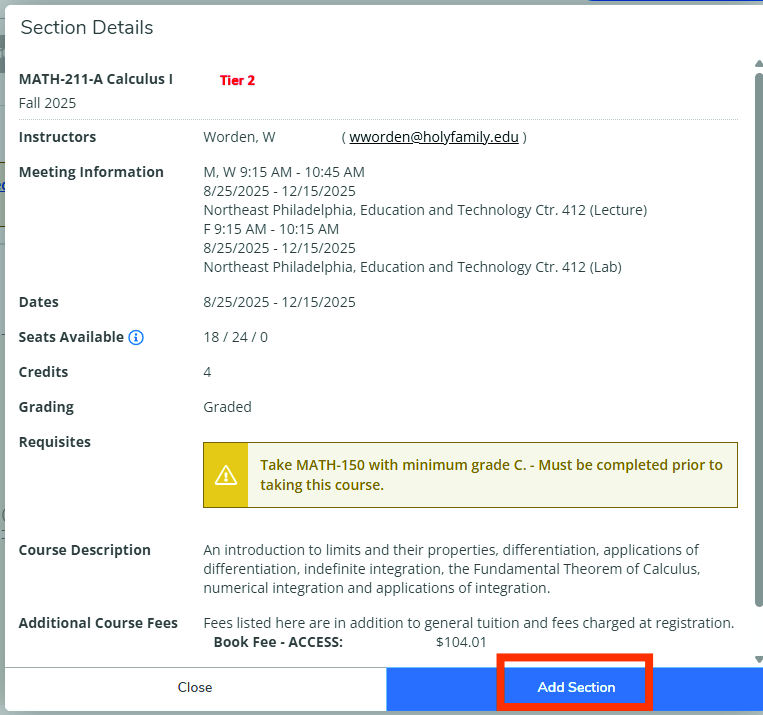
- Once you find the right section, click on it, and then click Add Section. This course section is now planned for you for the selected term.
- After you have finished planning all of your course sections, go to the Advising tab. You can add a note for your advisor or simply click the Request Review button. Your advisor will then approve or deny your planned sections.

Step 3: Register for Your Classes
- Go to the Registration Information webpage to see when registration will open for your class level.
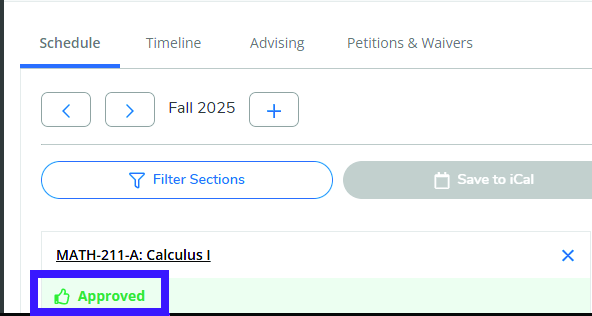
- When registration opens, go back to the Plan & Schedule page. You will see a green "Approved" thumbs-up icon next to the courses that have been approved by your advisor.
- To register for all your approved courses, click the Register Now button on the right side of the page.
