
New Employee Tech Guide
How to access and effectively use the information technology resources available to you at Holy Family University.
Technical Support
The IT Help Desk
The IT Help Desk is the first point of contact for all requests and issues related to technology services provided at Holy Family University. The Help Desk provides support to students, faculty, and staff on a wide range of technology-related topics, including, but not limited to:
- Password issues
- Wi-Fi access problems
- Software application support
- AV requests for events (must be made one week before the event date)
To contact a member of the IT Help Desk, email us at helpdesk@holyfamily.edu. You can also submit a request through the Help Desk's online system. A technician will respond to you within one business day. For in-person help on the Philadelphia campus, visit the IT Help Desk Office in the following locations:
- Main Campus (NE Campus): HFU Library – Lower Floor.
- Monday - Thursday: 7:30 a.m. – 4:30 p.m.
- Support is limited after 4:30 p.m. Monday–Thursday.
- Friday: 7:30 a.m. - 4:30 p.m.*
- Monday - Thursday: 7:30 a.m. – 4:30 p.m.
- Newtown East & West (NWT E/W): Office is in West Campus, Left to the Lobby.
- Monday - Friday: 8:00 a.m. – 4:00 p.m.*
* Summer Hours (May - August) every year may apply - always check the Help Desk website.
For urgent matters, we recommend reaching out during our full staffing hours or call us during our office hours at 267-341-3402. For more information and answers to frequently asked questions, visit the Help Desk Website.
Canvas Support Hotline
Canvas support live chat and the Canvas Support Hotline are available twenty-four hours a day to assist you with all of your Canvas needs. These options can be accessed through the Help menu in Canvas. For further support, find the support chatbot in Canvas or call the Canvas Support Hotline at 833-685-8347.
IT Help Desk Equipment and Services
The following equipment and services are available from the IT Help Desk upon approval. Please contact the Help Desk at least one week in advance for hardware and equipment requests.
Audio | Video | Requests |
|---|---|---|
Microphone, Speakers, Sound System, Audio Recording, Conference Phone | Video Camera, Projector, Projection Screen, Large Monitor Display, Video Streaming, Video Recording, Video Chat, Remote Presentation | Software Downloading, Hardware Upgrades, Printing Assistance, Hardware/Software, Loaner Laptop, Projector |
Accounts Setup
Email Address
As a new employee, Holy Family will assign you an email address and a temporary password. You can log in to your email account at www.gmail.com. You will be prompted to change your password after logging in for the first time. Your email address will follow this format: username@holyfamily.edu.
User Account
Your user’s name and password will allow you to log in to your desktop computer and several other campus systems.
Please refer to the following lists to determine which username to use when logging in to Holy Family software systems.
Systems requiring Username Only | Systems requiring Full Email Address |
|---|---|
HFU provided desktop/laptop, Self-Service, Tiger Wi-Fi, PC Login, ADP*, AdAstra*, Raisers Edge, CRM Advise, Colleague | Canvas, Office 365, Gmail, Visa Intellink*, MyHFU |
* Note: These systems use their authentication method and do not automatically update if you change your Holy Family University password
ID Card
- Main Campus (Northeast Campus): Campus Center – Security Desk
- Monday-Friday: 9:00 AM – 4:00 pm
- Newtown East & West (NWT- E & W): Security Desk
- Monday-Friday: 9:00 am – 4:00 pm
Please report lost or stolen ID cards immediately by visiting the Security Desk at any campus, calling 267-341-3333, or emailing hfuid@holyfamily.edu with your details.
TigerWiFi
The University's enterprise wireless network is named "tigerWiFi". To configure the network on your wireless device, review the following documents:
Accounts Management
Password Reset
The University uses Single-Sign-On to connect many of your online accounts (Gmail, Self-Service, Canvas) with a single username and password. If you are unable to log in to applications or if you’ve just forgotten your password, follow the steps in the guide to reset your password.
You will need to manually update the password for email clients on your mobile devices.
Self-Service
Self-Service is a web-based information management tool that allows users to access employee and student records, enter grades, check financial aid status, request transcripts, check your department budget, change your banking information, and access other university functions and databases.
Hardware
Desktop/Laptop Setup
Full-time employees requiring a device receive one pre-installed with required software on their first day of employment. Log in using your Holy Family username and the password from Human Resources.
Phone Extensions: Zoom Phone & Voicemail
Full-time employees who require a desk phone with a headset will be provided with one on their first day of employment.
Your Holy Family extension and direct number can ring through the Zoom Workplace app on your computer or mobile device. Therefore, you need to download the Zoom Workplace application on your phone device (if needed). We will download it to your computer issued by the IT Department.
- You can find your extension anytime at the top of the Phone tab panel within the app.
- Checking Voicemail Off-Campus: To check your voicemail from an outside line, use the Zoom mobile app or call your direct number and press * during the greeting.
- You can also view automatic transcriptions and play audio directly inside the app's Voicemail tab.
Printer/copiers setup & operation
PaperCut is Holy Family’s print management software. With PaperCut, you can securely print to any shared printer/copier on campus by simply swiping your Holy Family ID Card and pressing print. For additional help check our Printing Instructions website.
Shared printers (HFU-Find-Me-Print Printers) are primarily for printing 8 ½ X 11, but will accommodate other paper sizes via the Bypass Tray and other trays.
For detailed information on the sizes and types of paper that can be loaded into each tray of the machine, read Applicable Paper Types & Sharp MX-M365 User’s Manual.
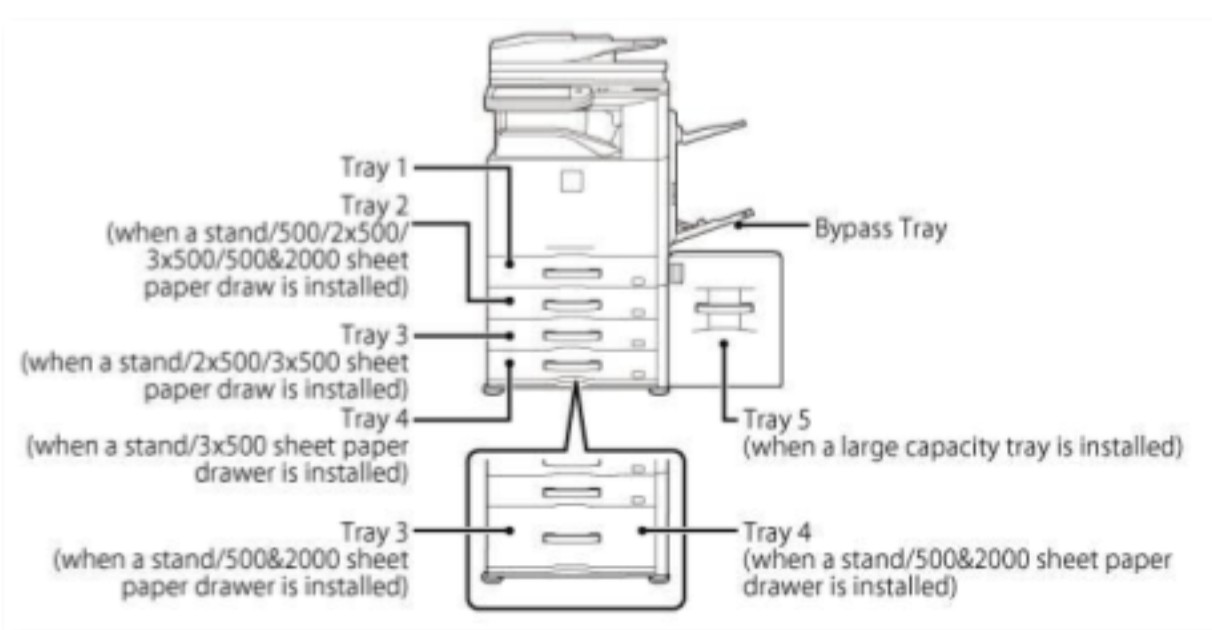
Printer/copier paper is provided by Facilities. To request paper supplies, log in to the university’s work order system with your username and password, select the New Request, and complete the required fields.
All Holy Family employees and students are encouraged to print double-sided.
Note: For large specialty print jobs, send a request to duplicating@holyfamily.edu.
Printer/copier Locations
Location | Basement | 1st Floor | 2nd Floor | 3rd Floor | 4th Floor |
|---|---|---|---|---|---|
Library | ✓ | ✓ | |||
Educational Technology Center (ETC) | ✓ | ✓ | ✓ | ||
Holy Family Hall (HFH) | ✓ | ✓ | ✓ | ✓ | |
Campus Center | ✓ | ✓ | ✓ | ||
Nurse Education Building (NEB) | ✓ | ✓ | ✓ | ||
Newtown East Campus | ✓ | ✓ | |||
Newtown West Campus | ✓ |
Commonly Used Applications
Canvas (Learning Management System)
Orientation to Canvas and Online Instruction is a self-paced, online course designed to familiarize you with the tools and concepts you need to know to successfully build and teach a course in Canvas.
Holy Family University provides access to your email through Gmail, a web-based email service. Gmail provides unlimited mailbox storage, chat integration, and enhanced mail
search. Get Started with Gmail.
Google Workspace
Google Workspace is the new name for Google Apps, a suite of productivity software including Gmail, Google Calendar, Google Drive, and more. Holy Family makes Google Workspace available for faculty, staff, and students. Learn more about Google Workspace.
MS Office 365
Holy Family has partnered with Microsoft to provide Office 365 to all current students, staff, and faculty. Office 365 combines Microsoft Office applications and the cloud to create a more convenient, collaborative, and consistent work and file management outlet. Learn about Office 365 at the Office Training Center.
Classroom
Holy Family classrooms have audio-visual equipment in place. You can find instruction guides here. Entire rooms can be reserved by completing an Internal Event Request Form.
Custom Software
The IT Department may be able to accommodate special software requests for IT-maintained computers. All requests for software should be submitted to IT no later than 30 days before the date on which the software is to be used. Contact the IT Help Desk for more information.
Practice Secure Computing
- Don’t share user accounts.
- Keep passwords private
- Never give out passwords in an email
- Don’t turn off anti-virus software
- Log out when you are away from your computer
- Don’t store confidential information on removable media or your hard drive
- Store important files on network drives (Q:), Google Drive
- Desktops are not backed up. Users are responsible for backing up and securing any files stored on the desktop.