
How to Enable 2-Step Verification for Student Google Accounts
This guide aims to assist students in enabling 2-Step Verification for their Holy Family University Google account and Gmail. Enabling 2-Step Verification adds a layer of security to your account, helping to prevent unauthorized access.
How to Sign Up for 2FA with a Mobile Number
- Open Browser and Sign In: Open your web browser to a new tab (Holy Family University recommends Google Chrome) and sign in to your Google account if you are not already logged in.
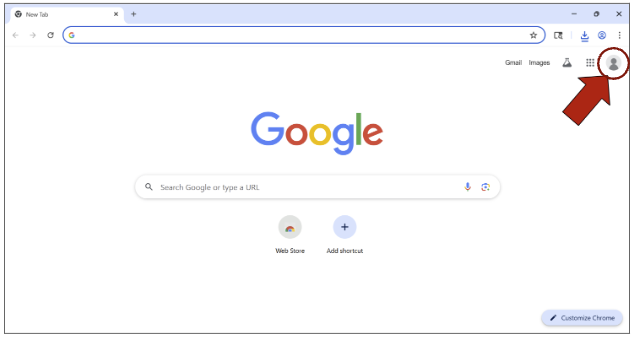
Select Your Account: Click on your profile icon (usually in the top right corner of the browser) to select your Google account.
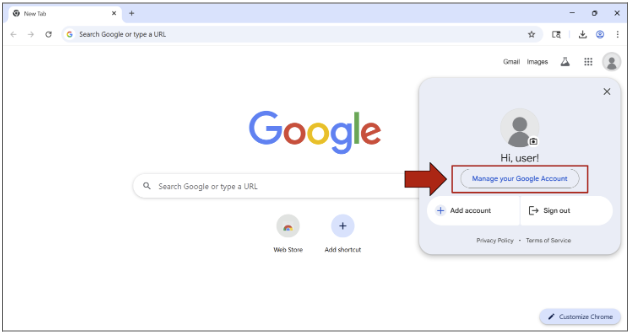
Manage Google Account: Then, select "Manage your Google Account" from the dropdown menu.
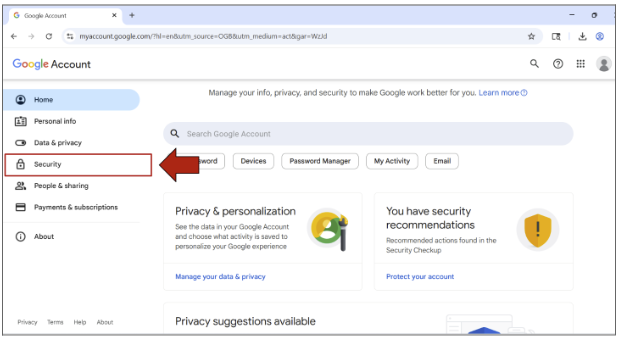
Navigate to Security: Once in your Google Account settings, navigate to the tab labeled "Security" on the left-hand side menu.
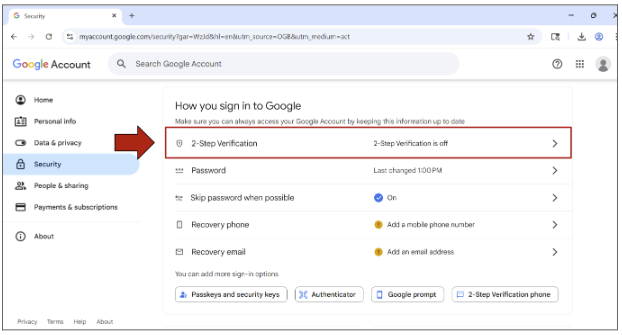
Select 2-Step Verification: Scroll down slightly on the Security page and select the "2-Step Verification" option. It will likely show that "2-Step Verification is off."
Turn On 2-Step Verification: To begin adding a phone number to your account and enrolling in the 2-Step Verification process, select the "Turn on 2-Step Verification" button. This will add a layer of security to prevent hackers from accessing your account.
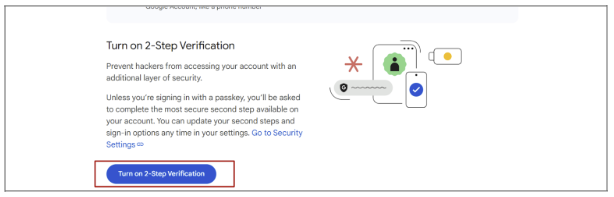
- Enter Cell Phone Number: Once prompted, enter your cell phone number and then click Next.
Enrollment Confirmation: Congratulations! You are now enrolled in 2-Step Verification.
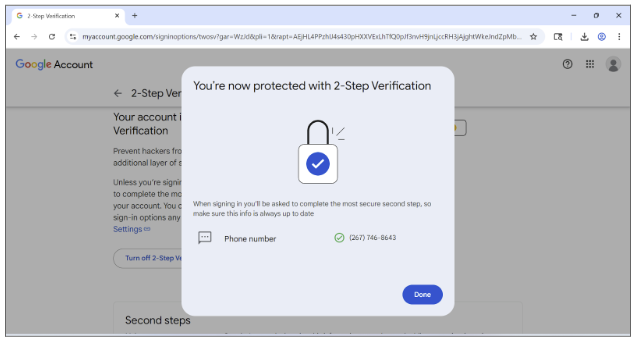
- From now on, when signing into your Google account, you will be required to enter a 6-digit verification code sent to your mobile device.
Troubleshooting
This guide does not contain a specific troubleshooting section for 2-Step Verification. If you encounter issues during this process, please contact the Holy Family University IT Help Desk for assistance.
Frequently Asked Questions
What is 2-Step Verification?
2-Step Verification adds an extra layer of security to your account by requiring a second step of verification (like a code sent to your phone) in addition to your password, making it harder for unauthorized users to access your account.
Why should I enable 2-Step Verification?
Enabling 2-Step Verification helps protect your Holy Family University Google account and Gmail from unauthorized access and enhances your overall digital security.