
Laptop Kiosk
Need a Laptop? We've Got You Covered!
At Holy Family University, we know how important it is to stay connected and power through your studies. That’s why we’re introducing the Holy Family University Laptop Kiosk! It's a quick, easy, and convenient way to borrow a laptop on campus.
Here’s how it works:
- Swipe your Holy Family ID.
- Follow the on-screen prompts.
- Grab your laptop and get to work!
Each laptop can be borrowed for up to five hours and is fully equipped with the tools you need, including Microsoft Office.
Need more info? Check out our easy-to-follow how-to videos on the website. These step-by-step guides will show you everything you need to know.
Stay powered up, stay connected – and let the Holy Family University Laptop Kiosk help you succeed!
Three Convenient Kiosk Locations
Philadelphia Campus
Library, Ground Floor
Blue Kiosk
Please make sure laptops checked out from this kiosk are returned to this kiosk.
ETC Lobby
Yellow Kiosk
Please make sure laptops checked out from this kiosk are returned to this kiosk.
Newtown East Campus
Blue Kiosk
Instructions for Laptop Kiosk
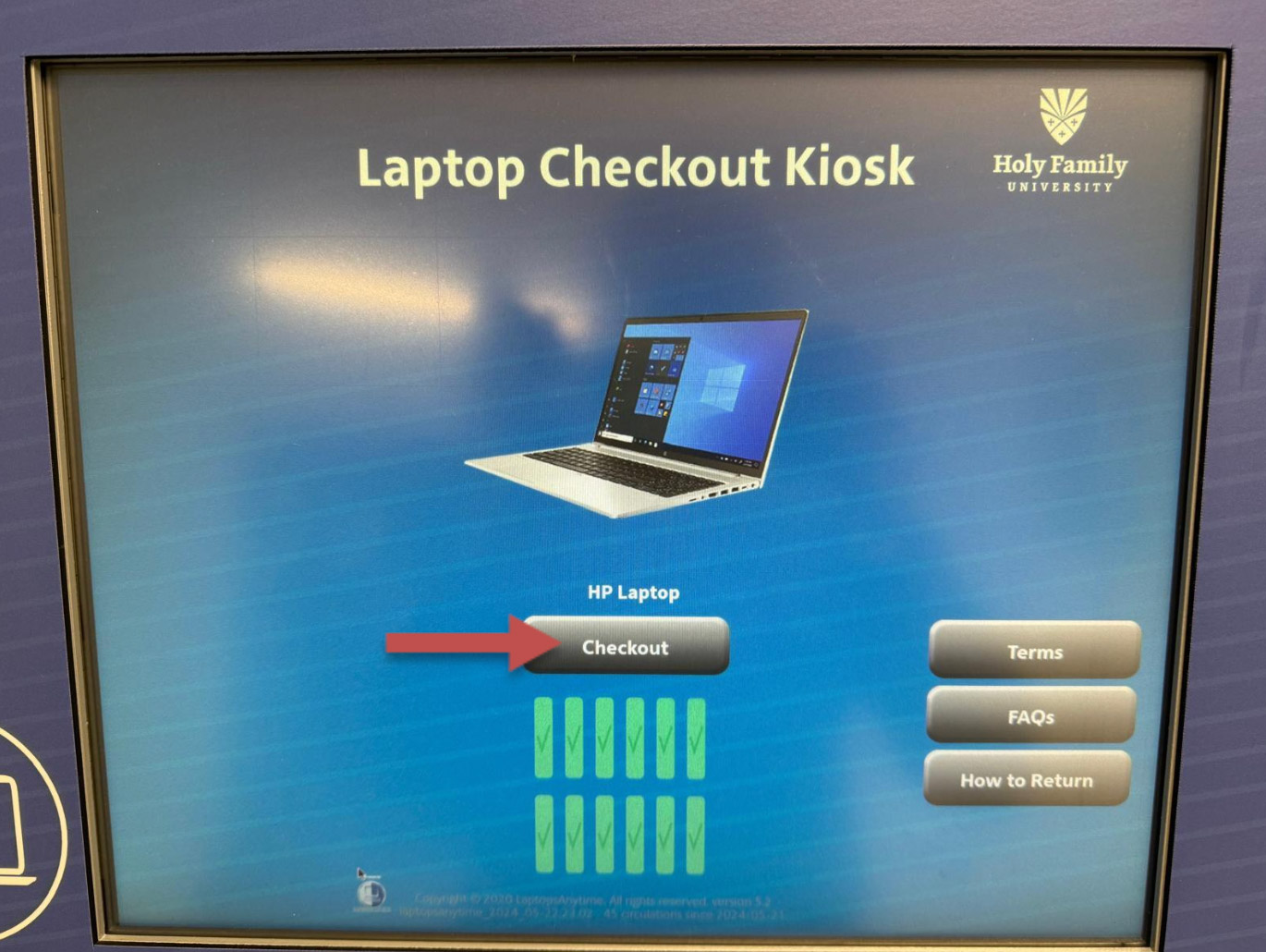
- Press Checkout under the Laptop
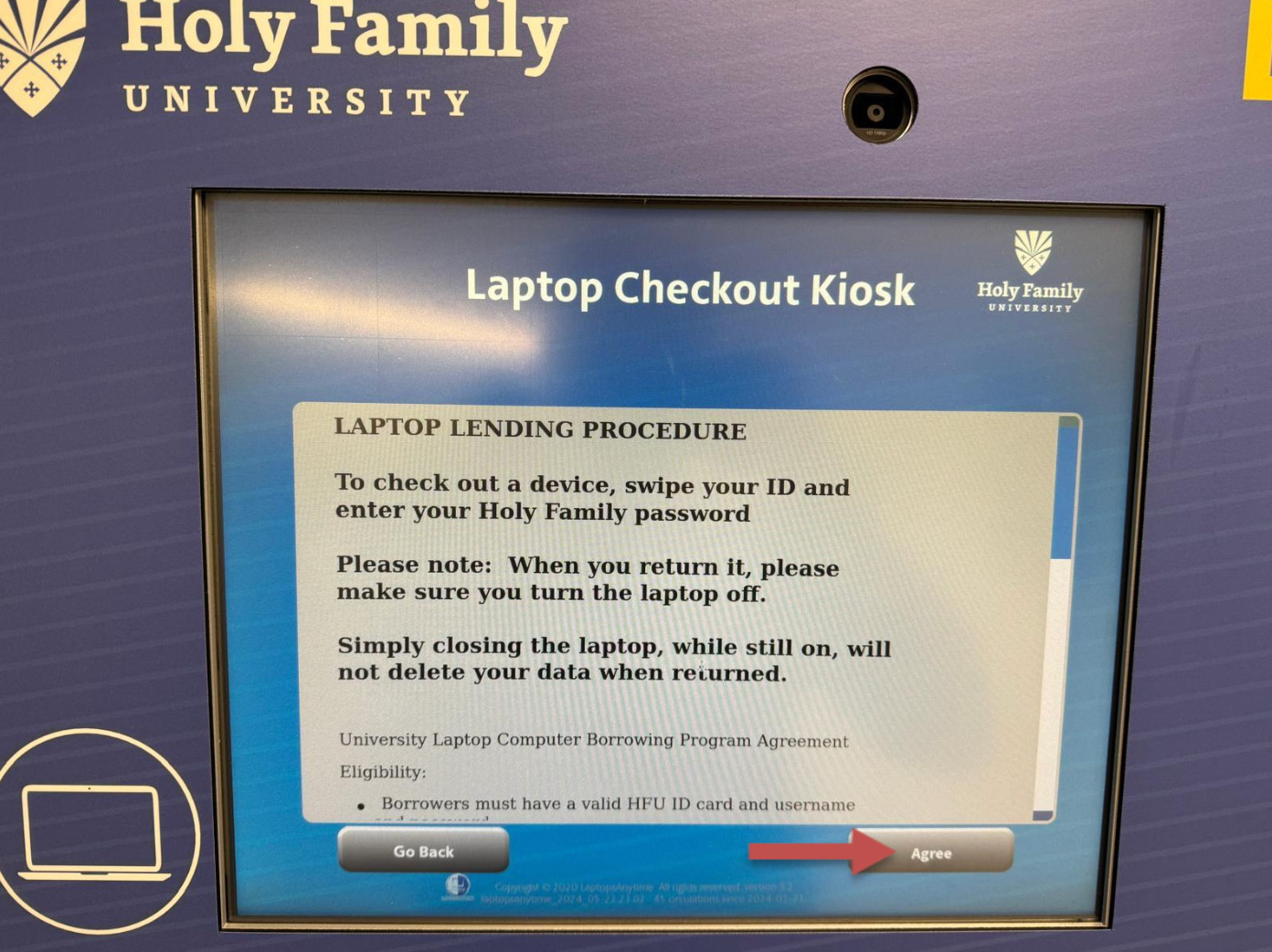
- Read the lending terms for the proper checkout and check-in procedures, then press Agree.
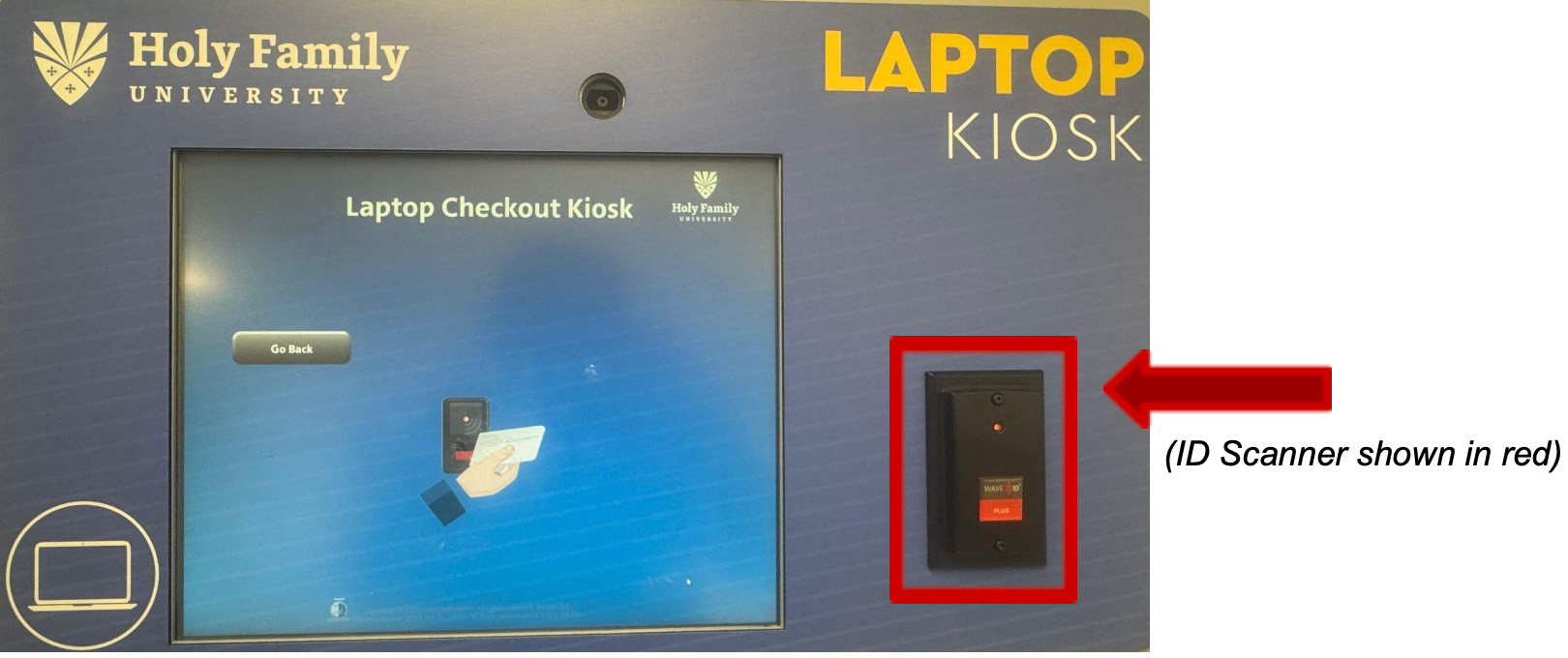
- Scan your Holy Family ID after the previous screen disappears.
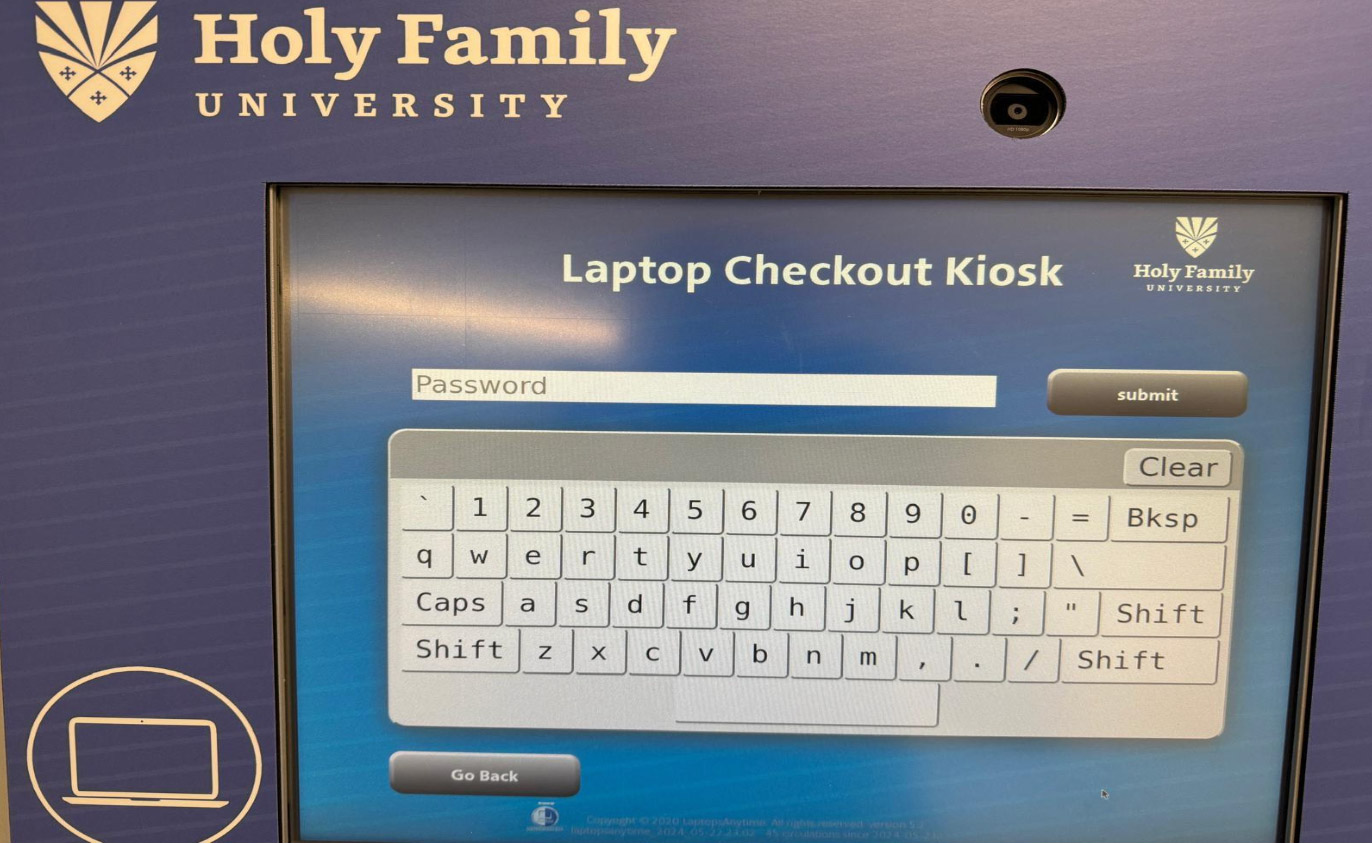
- Enter your Holy Family Password. The password will be the same as your other HFU accounts Login.
- Grab the laptop out of the kiosk.
You are all set!
You will be notified at your Holy Family email on Laptop Checkout Receipt.
Terms of Use
- The vending machine is 1st come 1st serve and no reservations are allowed.
- Patrons can not check out more than 1 laptop at a time from the kiosk.
- The machine has 8 laptops available for checkout.
- Laptop checkouts will be random (patrons can not select which laptop they would like to use). You must use your Holy Family ID when checking out from the machine.
- When checking out, the vending machine records the transaction and will take pictures once the laptop has been released from the kiosk.
- Automated messages about the checkout/returns will be sent to the patron's email.
- Patrons are given (I believe) up to 4-6 hours to use the laptop or until the laptop dies.
- Patrons are not allowed to leave campus with the laptops.
- Laptop WiFi is TigerWIFI and can only work on campus. Patrons must use their own Holy Family login to connect to the WiFi on the laptop
- The vending machine will display green slots for all available laptops.
- If slots are yellow, that means the laptop within the slot is not available for checkout (i.e., has a low battery/is charging).
- If the slot is "grayed out," that means the laptop within that slot has been checked out.
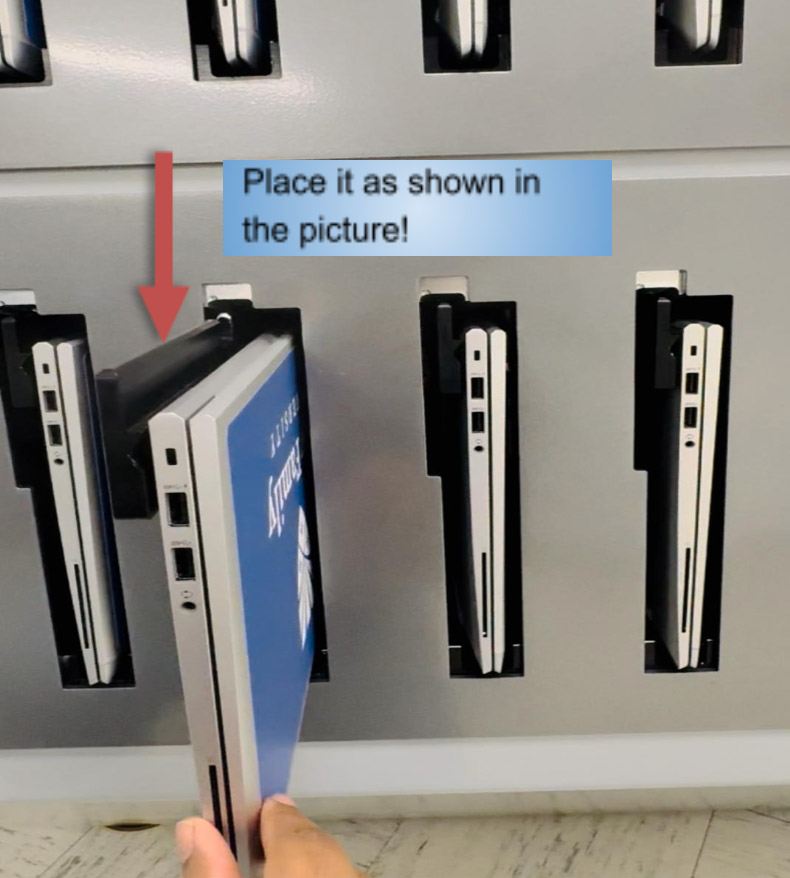
- When patrons are returning laptops, any open (greyed out) slot can be used.
- Patrons are allowed to check out another available laptop from the machine once the original laptop is returned.
- Laptops do not store data and will erase all downloaded information once it has been returned. Patrons must back up files before returning the laptop.
- Place your laptop back in a kiosk slot as shown below:
Find your instant Receipt on the screen.
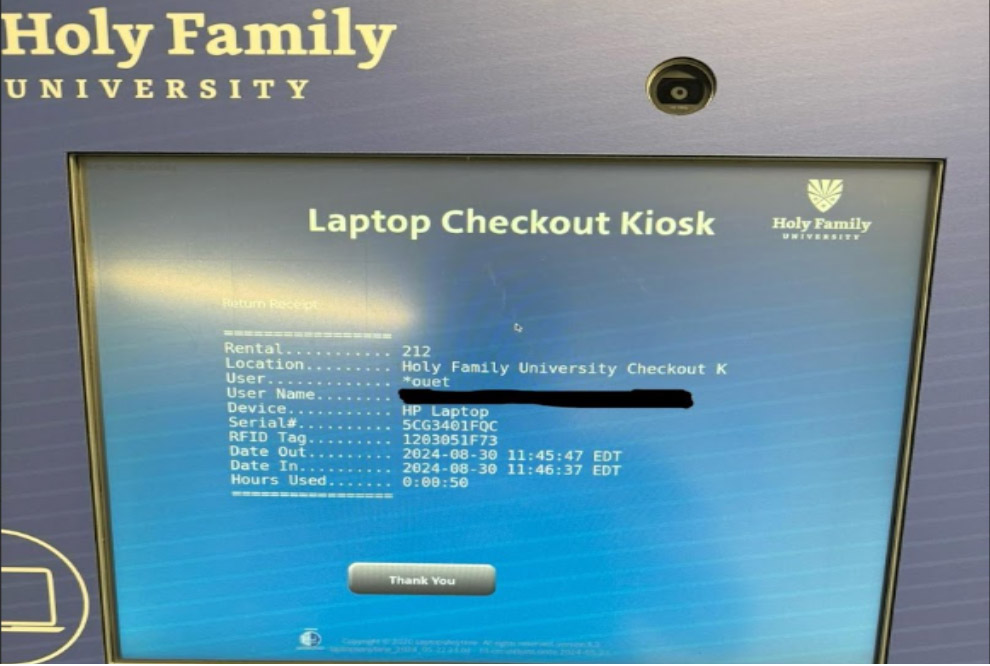
Laptop Return Receipt will be sent to your Holy Family University email.
If there’s an issue with the laptop, return it and grab another, or go to the Help Desk (Library Lower Floor) or call 267-341-3402, if any issue persists!